
How to Embed Flipbook on WordPress
Prerequisites
Before you begin, make sure your flipbook files are already uploaded to your web hosting. If you have not done this yet, follow our guide: Uploading a Flipbook to Your Website.
You will also need an embed code. Use our Flip Book Embed Code Generator to create one in seconds — just enter the URL where your flipbook is hosted and choose your preferred dimensions.
Step 1: Add a Custom HTML Block
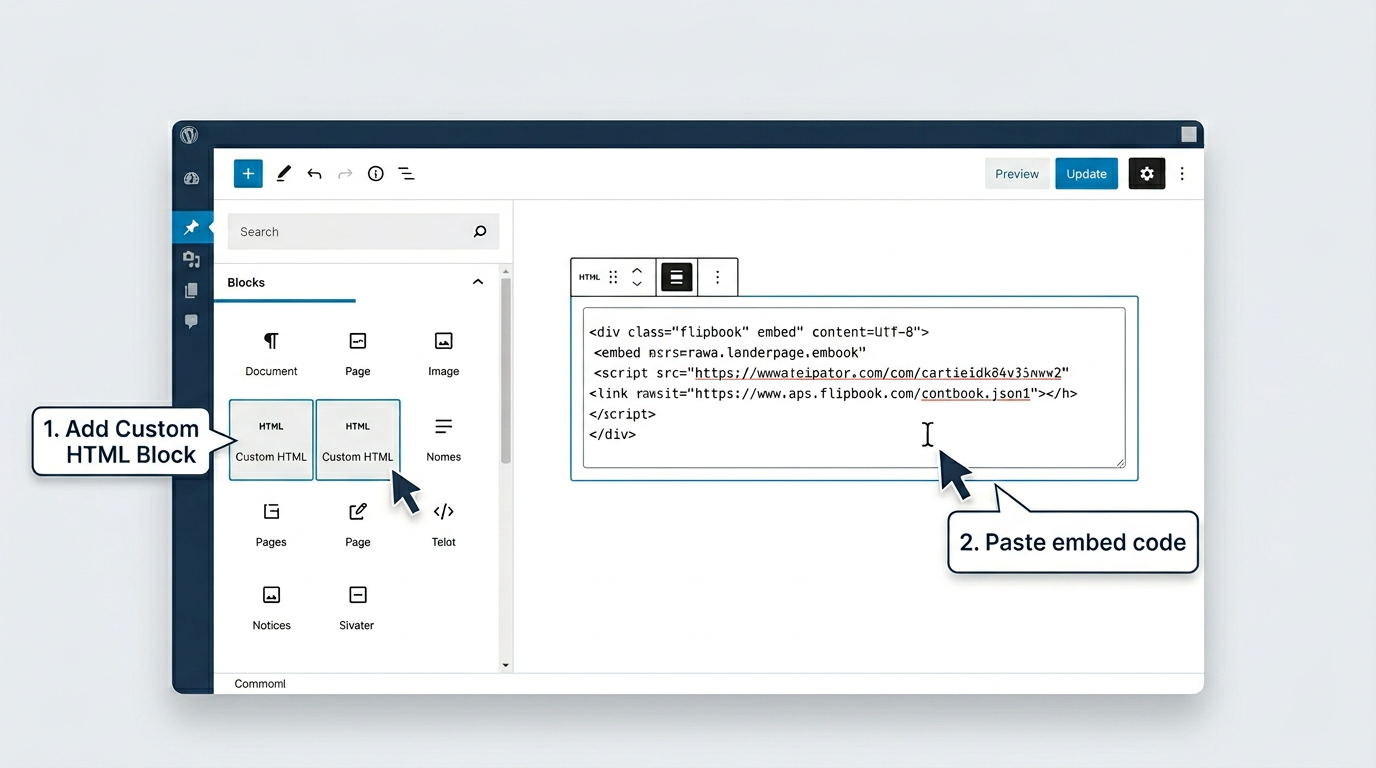
Open the WordPress post or page where you want the flipbook to appear. In the block editor, click the + (block inserter) button and search for Custom HTML. Select it to add the block to your page.
Step 2: Paste Your Embed Code
Click inside the Custom HTML block and paste the embed code you generated earlier. You can use the Preview button in the block toolbar to verify the flipbook renders correctly before publishing.
Step 3: Publish
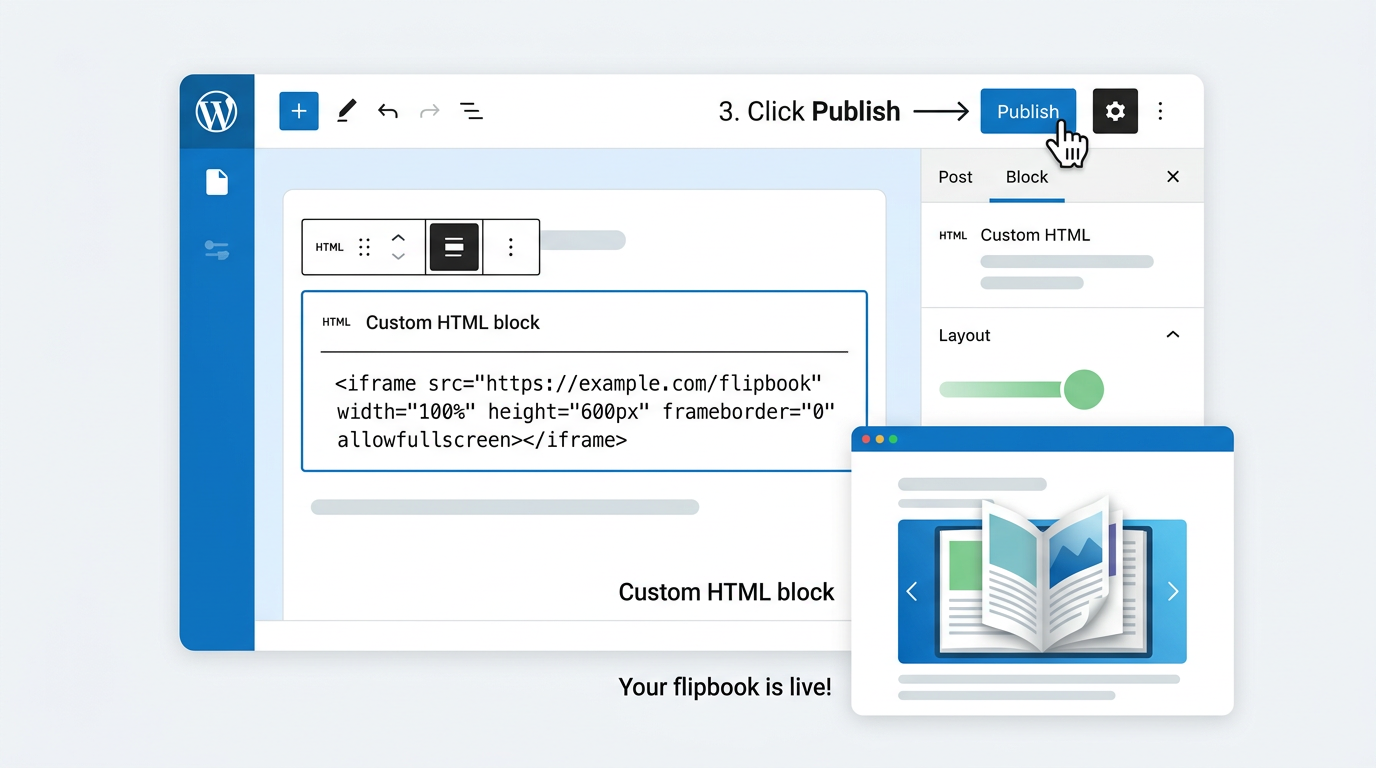
When you are satisfied with the placement, click Publish (or Update if editing an existing page). Your flipbook is now live on your WordPress site.
Tips
- Use the Responsive option in the embed code generator if you want the flipbook to adapt to different screen sizes automatically.
- You can embed a flipbook on any post, page, or even inside a widget area that supports Custom HTML blocks.
- If your theme uses the Classic Editor, switch to the Text tab before pasting the embed code.
Featured Articles
- Uploading a Flipbook to Your Website
- Flip Book Embed Code Generator
- How to Embed Flipbook on WordPress
- Benefits of Using a Flipbook
Businesses use Instant Flipbook