
Improving the Readability of Your Flipbook
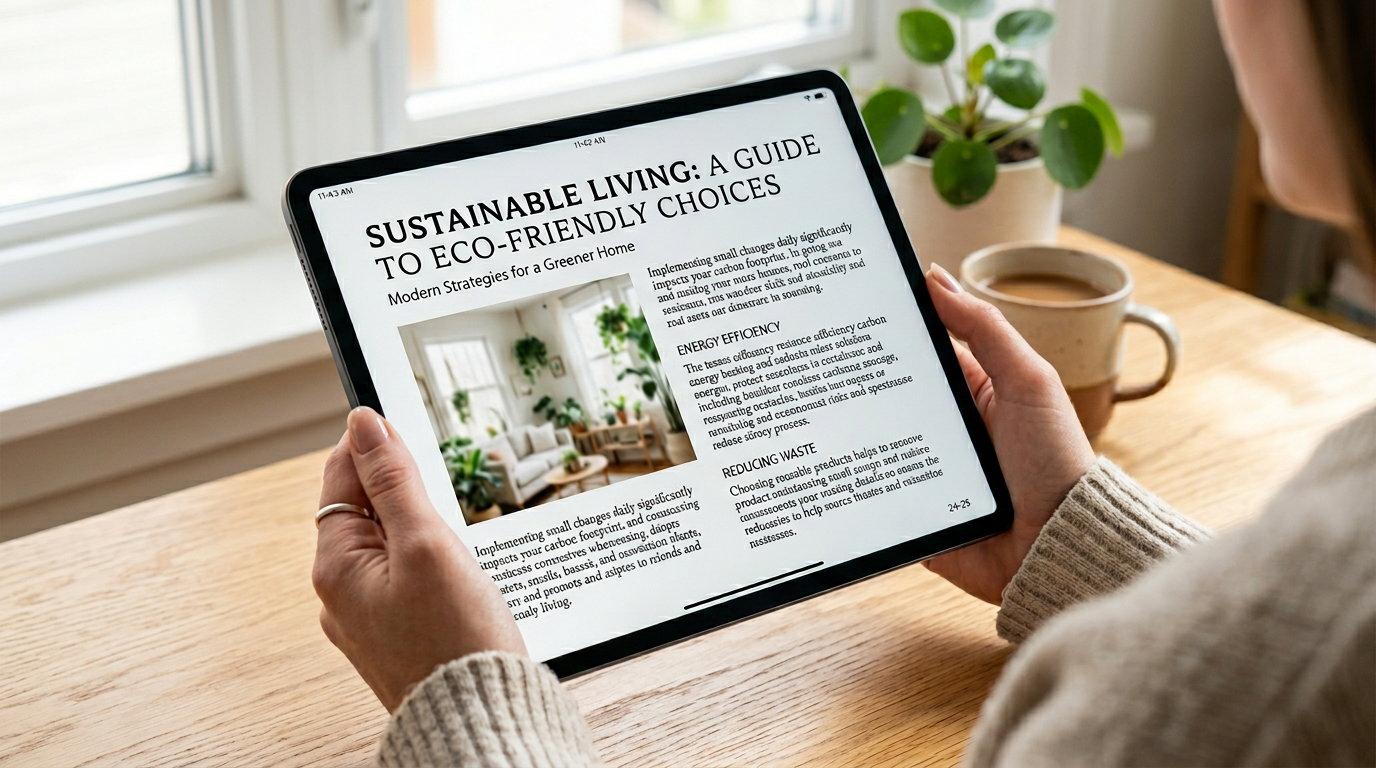
Ever squinted at your screen trying to make out a word in your flipbook? You are not alone. Readability is one of the most common questions we hear, and the good news is that it is almost always fixable. Let's break down what causes the problem and what you can do about it.
Why Does Text Sometimes Look Small?
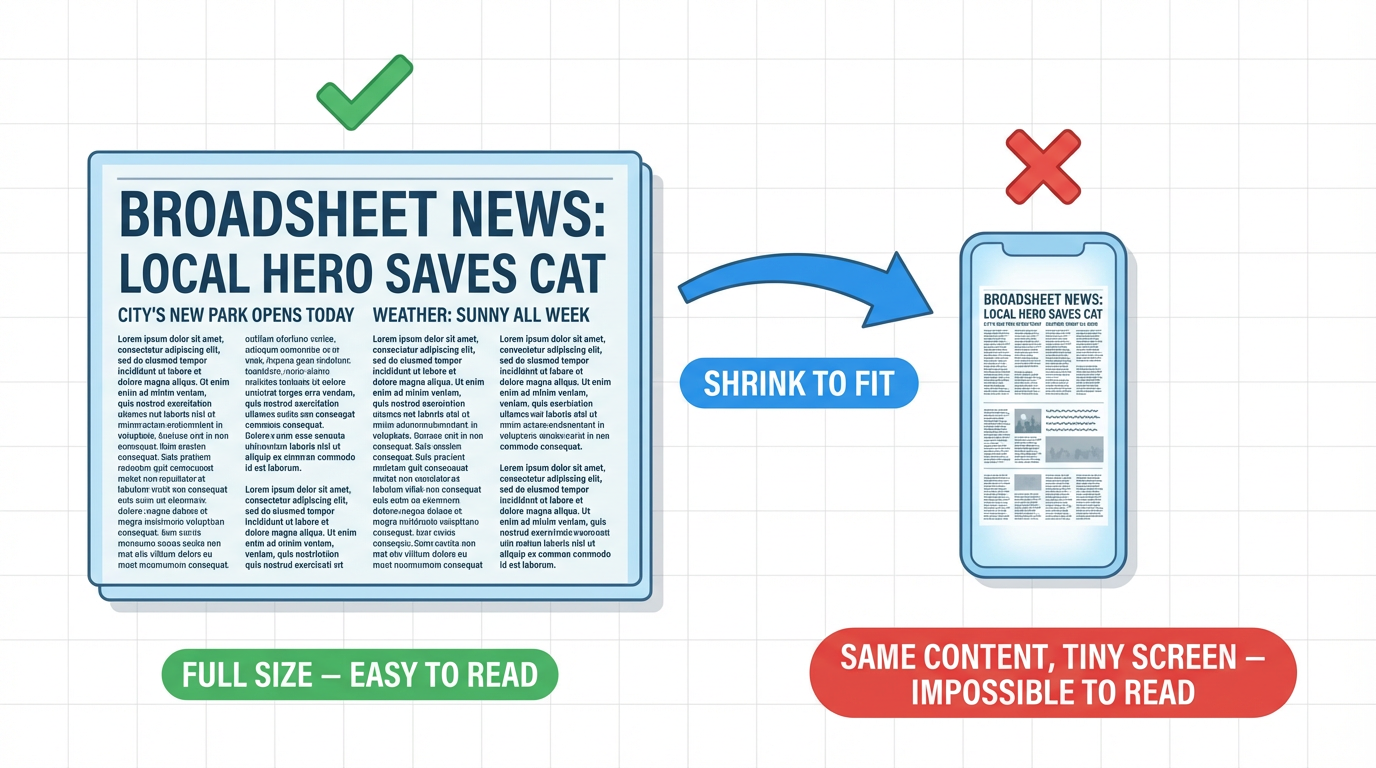
Think of it this way: take a full-size newspaper and shrink it to fit on a phone screen. The text that was already small is now tiny, and fine details disappear. That is exactly what happens when a high-resolution PDF is displayed on a smaller screen — the browser has to scale everything down to fit.
Three factors determine how readable your flipbook will be:
- PDF resolution — Higher-resolution pages contain more content to squeeze onto the screen.
- Font size in the original document — Smaller fonts naturally become harder to read at any zoom level.
- Reader's screen size — A 27-inch monitor has a lot more room than a 6-inch phone.
Fix 1: Increase Font Sizes in Your Source PDF
If you have access to the original design file, bumping up font sizes (even by a point or two) can make a noticeable difference. This is the most labor-intensive option, but it addresses the root cause directly.
Fix 2: Lower the Flipbook Resolution
In your Instant Flipbook account, click the settings icon below your flipbook and try selecting a lower resolution. This reduces the amount of detail per page, which means the browser needs to do less shrinking on the fly — often resulting in cleaner, more readable text on small screens. Overall image sharpness may decrease slightly, but for text-heavy publications the trade-off is usually worth it.
Fix 3: Use Zoom & Fullscreen
Every Instant Flipbook includes built-in zoom and fullscreen controls. On smaller screens, tapping the fullscreen button gives the flipbook the entire display to work with, and pinch-to-zoom or the zoom controls let you get a closer look at any section of the page.
A Note on Defaults
The resolution we set by default works well for the vast majority of publications. But every document is different — fonts, layouts, and image density all play a role. If readability is not quite where you want it, experimenting with the resolution slider is the quickest way to find the sweet spot for your specific content.
Featured Articles
- Uploading a Flipbook to Your Website
- Flip Book Embed Code Generator
- How to Embed Flipbook on WordPress
- Benefits of Using a Flipbook
Businesses use Instant Flipbook