
How to Add Audio to Your Flipbook
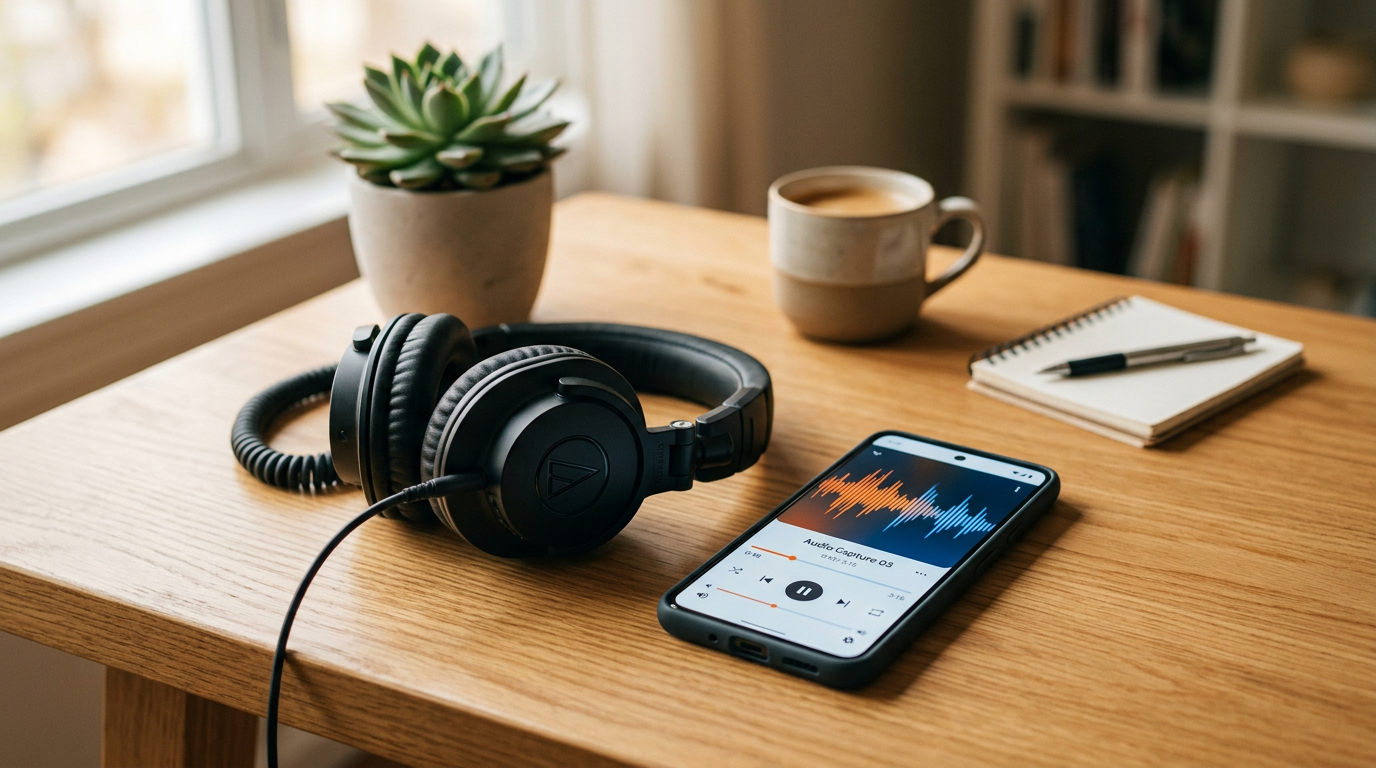
This guide walks you through adding background audio to your flipbook. With a quick edit to a single file, you can have music or ambient sound playing while your readers browse.
Before You Begin: Is Audio Right for Your Flipbook?
Background audio can be a powerful addition in the right context — think children's content with playful music, immersive product showcases, or multimedia presentations. However, for most flipbooks, auto-playing audio can distract from the content and may even annoy readers.
Because audio is a niche requirement, this feature is not part of the standard Instant Flipbook interface. Instead, you can enable it with a small manual edit to your flipbook's HTML file.
Step 1: Open Your Flipbook's HTML File
Locate the index.html file inside your extracted flipbook folder and open it in any plain-text editor (Notepad on Windows, TextEdit on Mac, or any code editor like VS Code).
Step 2: Add the Audio Tag
Scroll to the bottom of the file and paste the following line just before the closing </body> tag:
<audio controls autoplay loop><source src="audio.mp3" type="audio/mpeg"></audio>

Step 3: Add Your Audio File
Place your MP3 file in the same directory as index.html and make sure it is named audio.mp3 (or update the filename in the code to match).
Looping vs. Single Playback
The example above includes the loop attribute, which restarts the audio automatically once it finishes. If you prefer the audio to play only once, simply remove loop:
<audio controls autoplay><source src="audio.mp3" type="audio/mpeg"></audio>
Save the file, upload your flipbook, and your readers will hear the audio as soon as they open it.
Featured Articles
- Uploading a Flipbook to Your Website
- Flip Book Embed Code Generator
- How to Embed Flipbook on WordPress
- Benefits of Using a Flipbook
Businesses use Instant Flipbook